
1. Creating Reports in GEOExplorerIQ
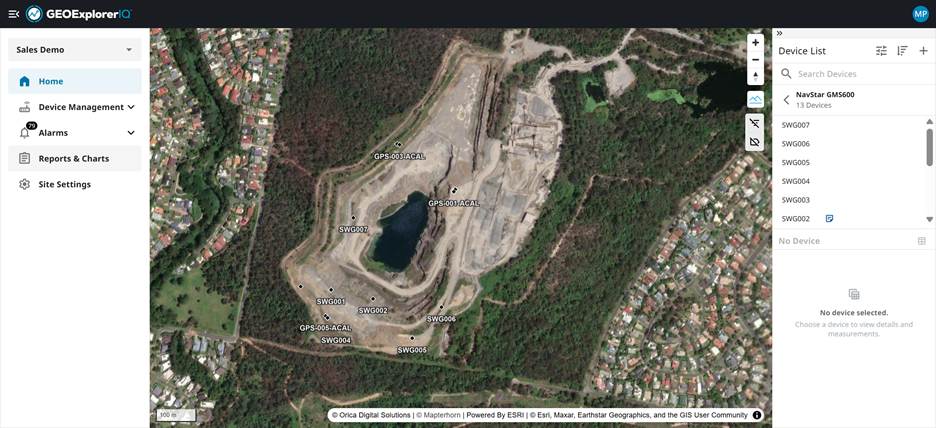
2. Choose "Reports & Charts" in the main menu
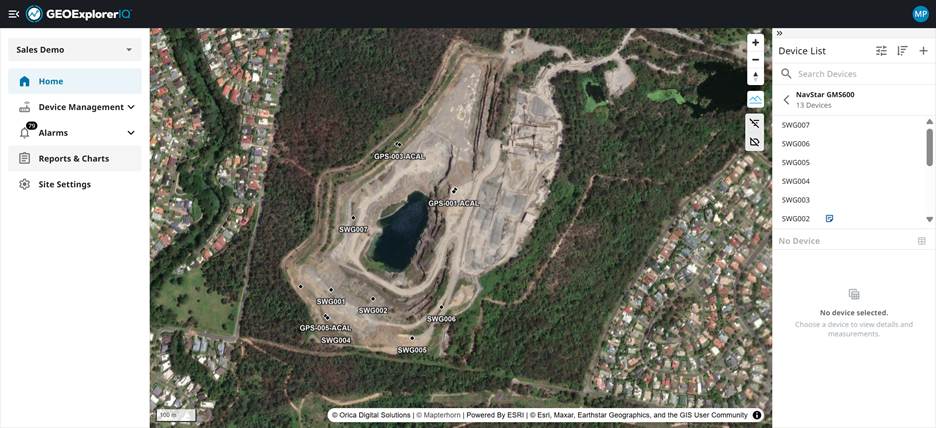
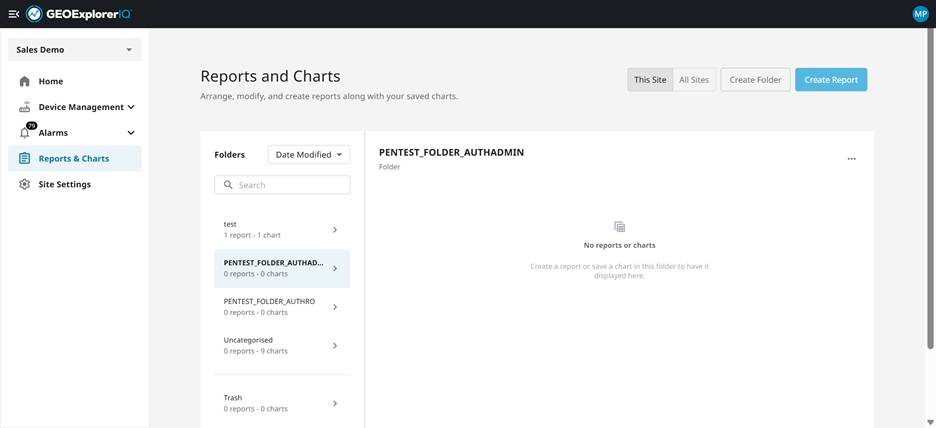
3. Create a new report or click on edit icon for an existing report for any further changes.
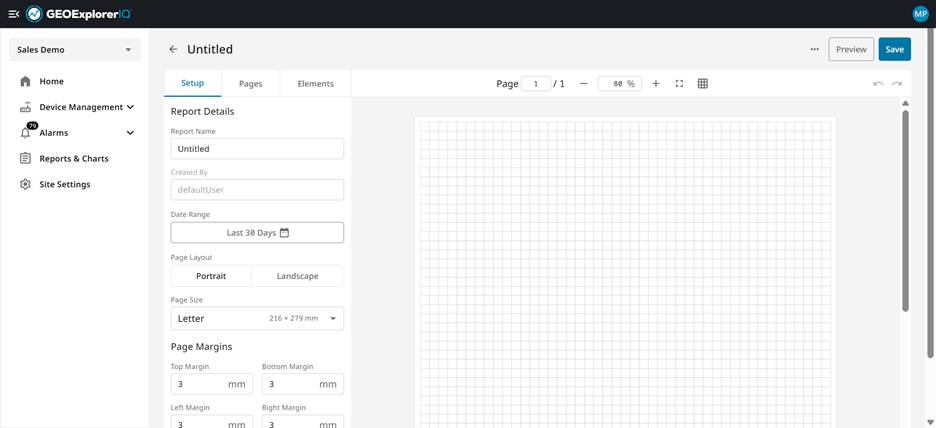
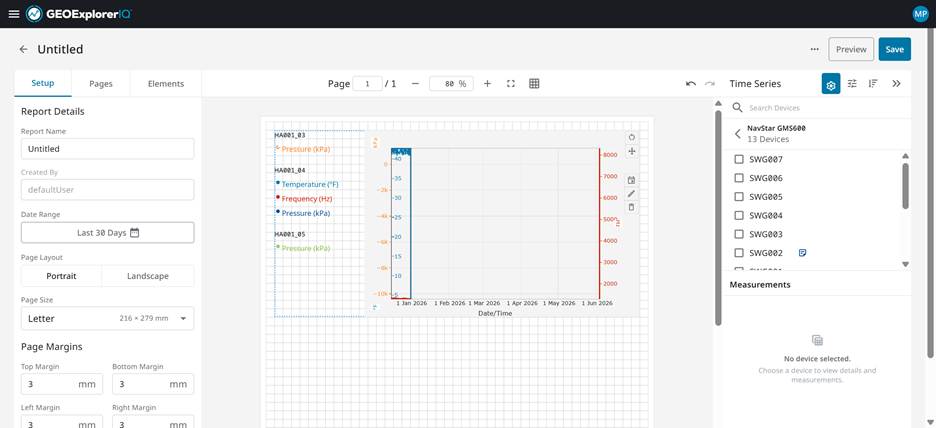
4. Set up provides different parameters to set up a page or template for the report. Set the name and set a default date range for the entire report. Setting a default date range will configure any chart that user adds in the report to the pre-set date.
5. Pages table will enable users to add more pages, delete, re-organize.
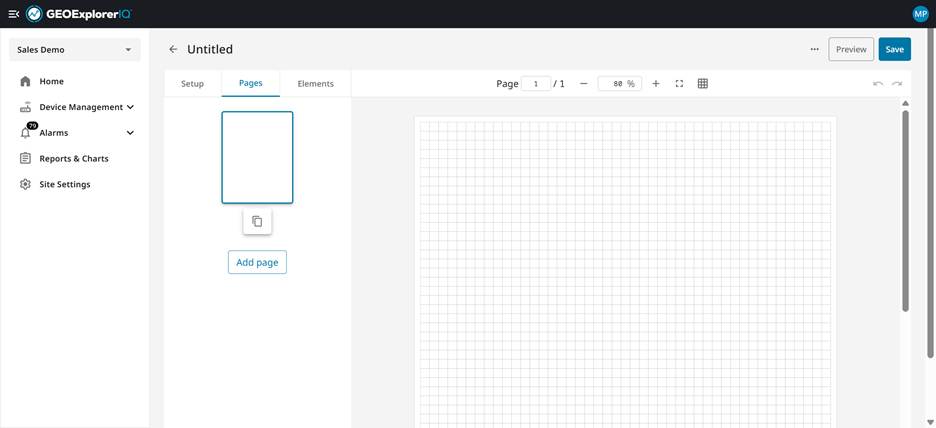
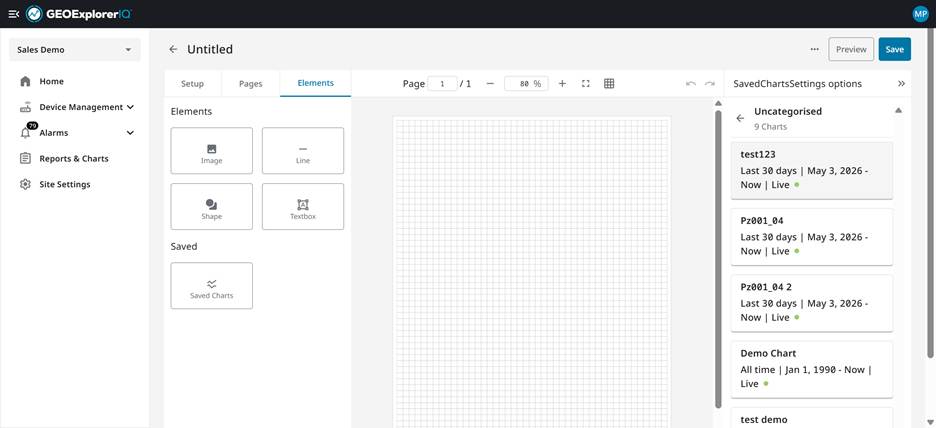
6. Elements section will have standard elements / components to bult the report. This will enable users to add an image, shapes, lines, texts, saved reports and sub surface charts.
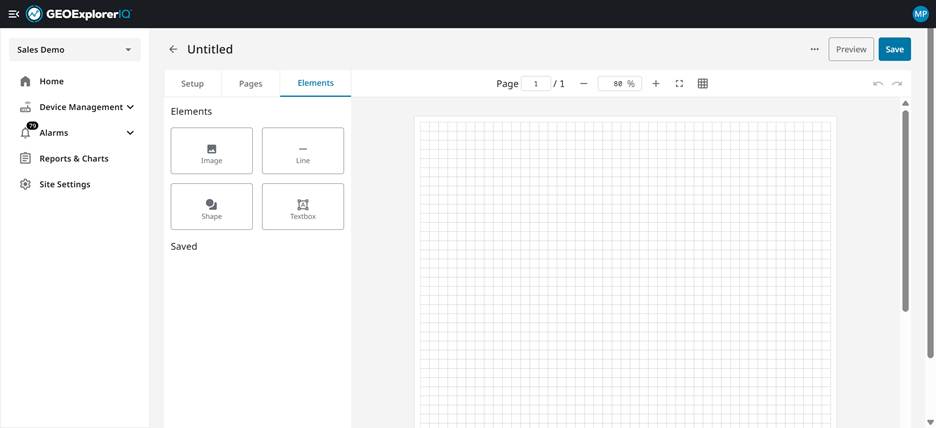
7. Saved charts will give access to all the charts saved by users across folders.
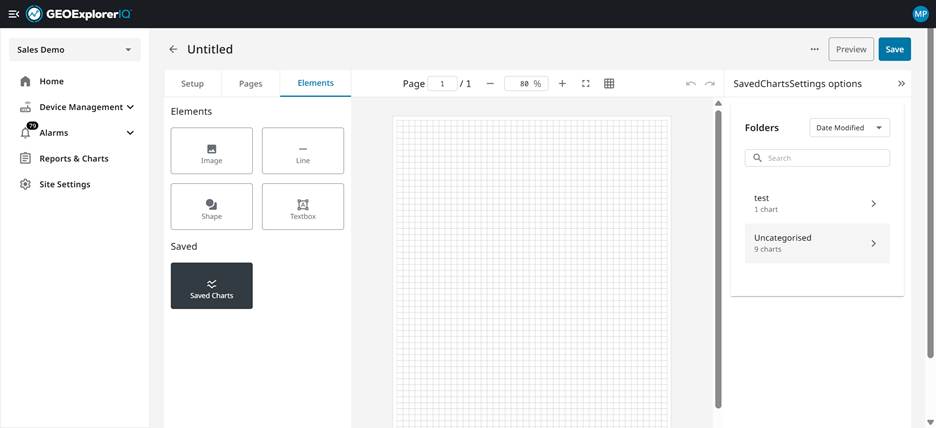
8. Once clicked "Saved Charts", all the charts will be access on the right panel by folder structure.
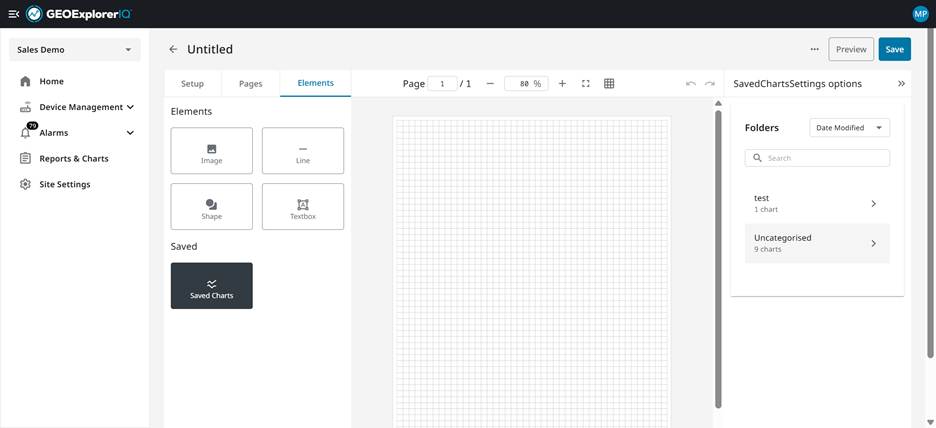
9. Choose a chart that you want to bring in into the report.
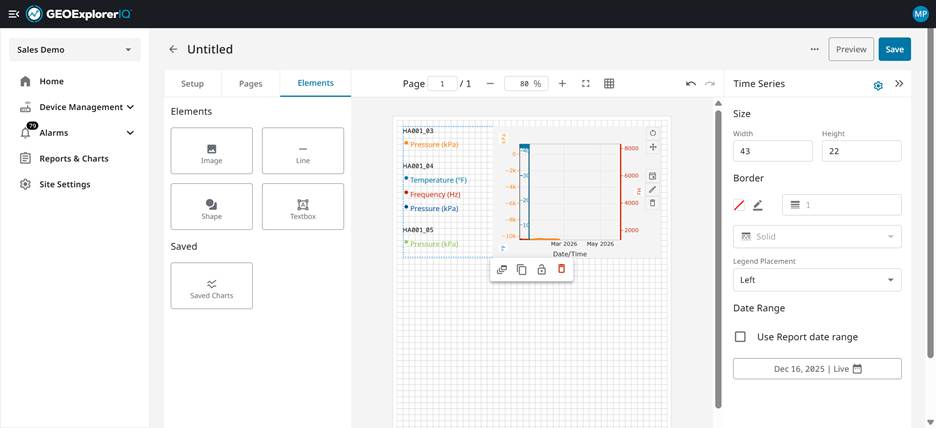
10. The Setting icon for the chart allows user to further modify the chart.
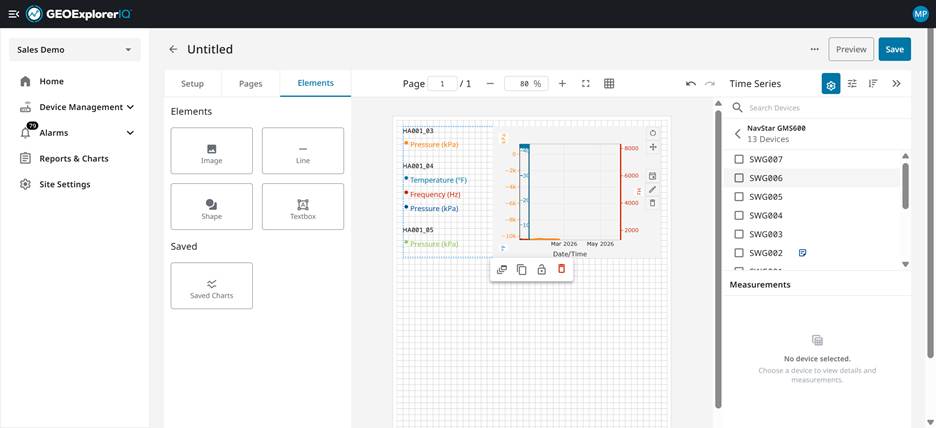
11. Setting allows users to access device list by groups, types or non. User can choose one or more devices from which data needs to be plotted in the chart.
12. Add your second metric to create multidimensional insights that reveal deeper location-based correlations.
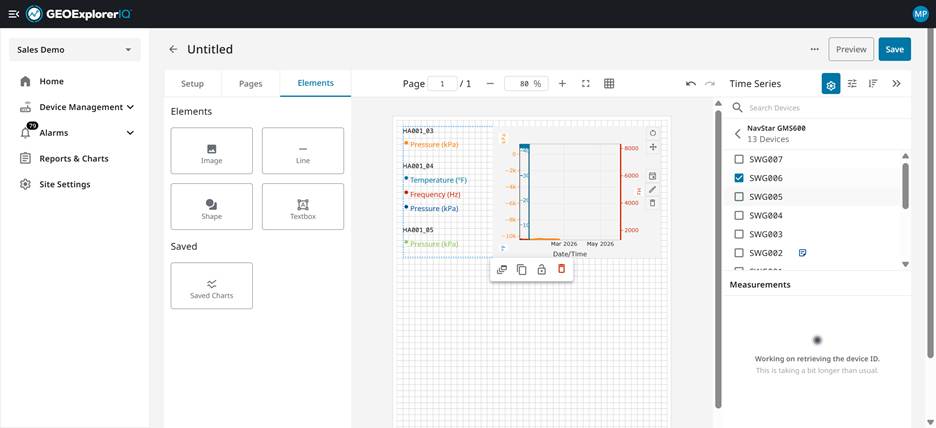
13. The data is grouped by data types for different devices chosen from the list.
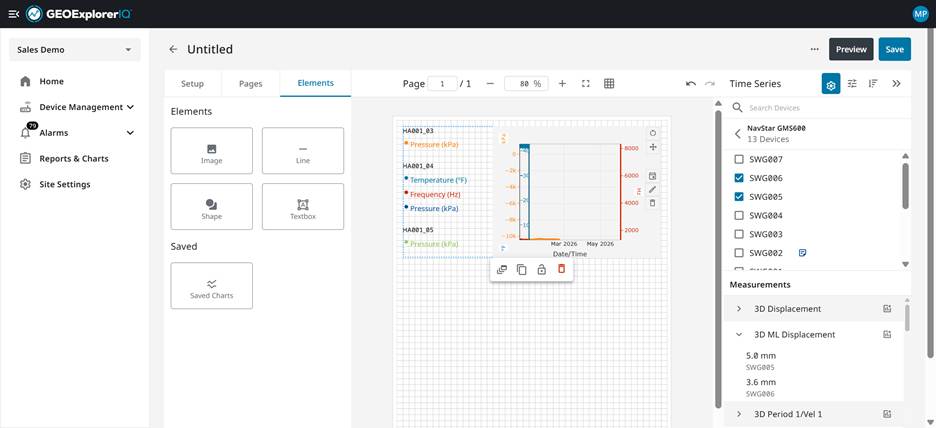
14. Click preview to generate the pdf or print the report.
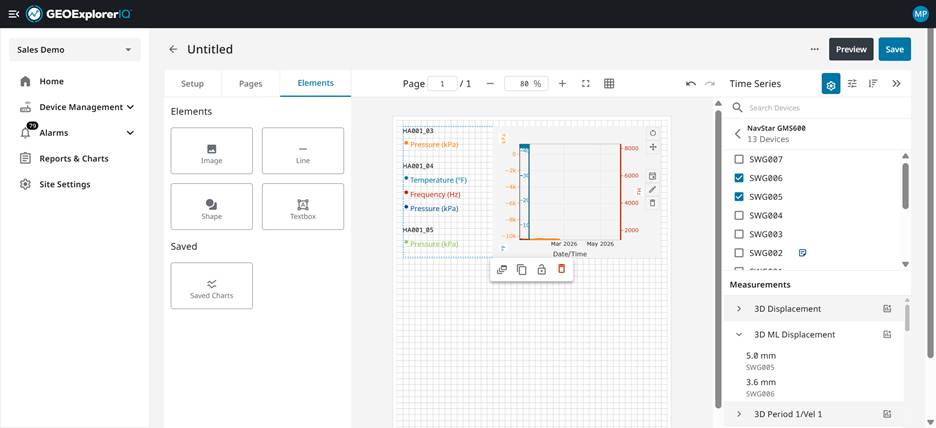
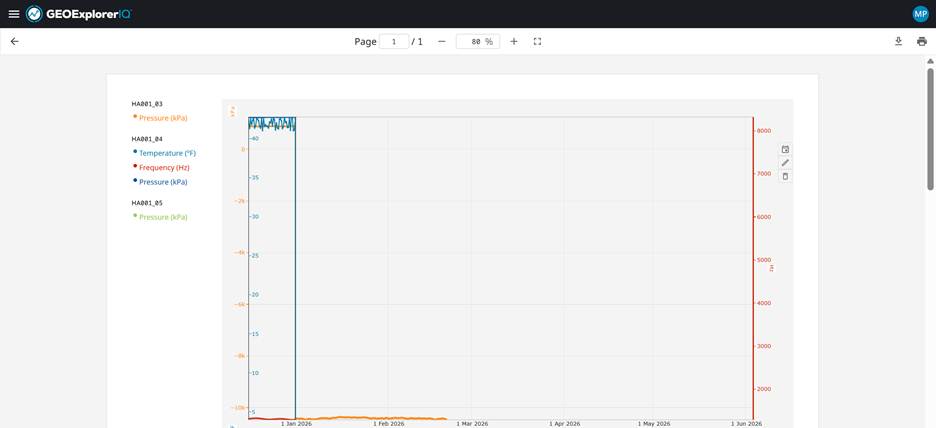
15. User can find the option to download a pdf or print the report.
16. Click on "Save" to save the report in the preselected folder or in uncategorized folder for future reference.
Made with Storylane - Build your own interactive product demo in minutes.